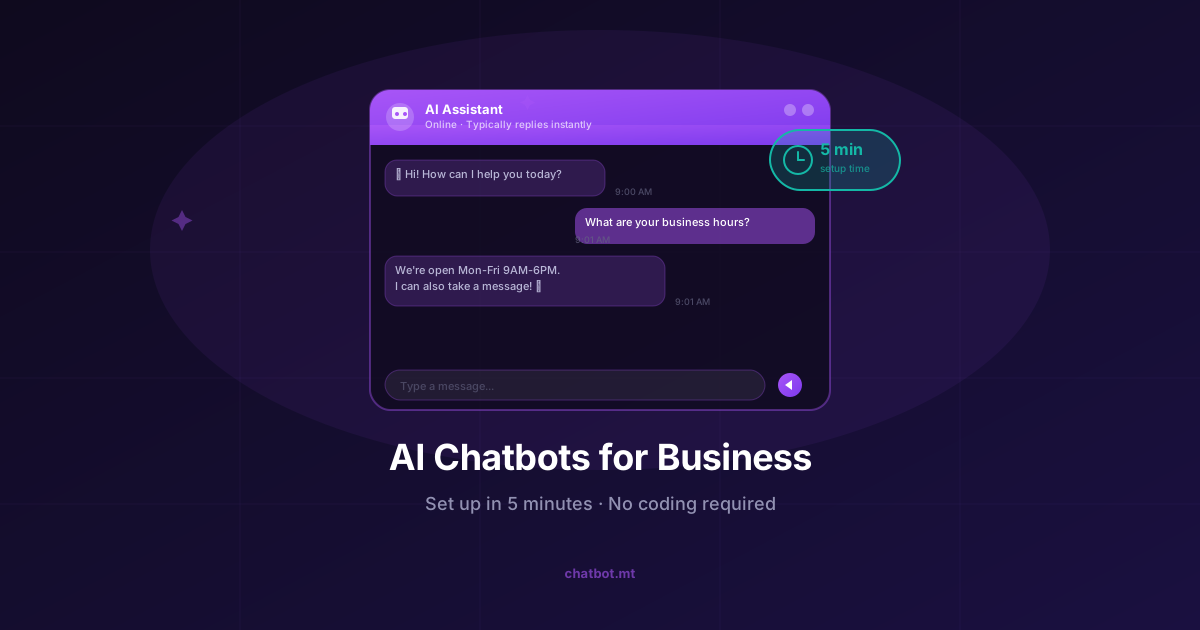
Five minutes sounds like a bold claim. But with the right platform, getting a functional AI customer support chatbot live on your website really is that fast. This guide walks you through exactly how to do it — no coding required, no AI expertise needed.
By the end, you’ll have a chatbot that can answer your customers’ most common questions, collect leads, and handle support enquiries around the clock.
What You’ll Need
Before you start the clock, make sure you have:
- A chatbot.mt account (you can sign up for free)
- Access to your website’s backend or CMS (to add the embed code)
- A rough idea of your 5–10 most common customer questions
That’s it. No technical knowledge required.
Step 1: Create Your Account (30 seconds)
Head to chatbot.mt and click Get Started Free. Enter your email and create a password. You’ll be in the dashboard immediately — no credit card required for the trial.
Step 2: Create a New Chatbot (1 minute)
From the dashboard, click New Chatbot. You’ll be prompted to:
- Give it a name — something like “Support Bot” or your business name
- Choose a persona — set a name customers will see (e.g., “Alex”) and a brief description of its role
- Set the primary language — chatbot.mt supports multilingual conversations, so choose your default
Don’t overthink this step. You can change everything later.
Step 3: Connect Your Knowledge Base (2 minutes)
This is where the magic happens. Your chatbot gets smart by reading your content. In the Knowledge tab, you can add:
- Website URL — paste your URL and we’ll crawl your site automatically
- Documents — upload PDFs, Word files, or text files (FAQs, manuals, policy documents)
- Manual Q&A — type in specific question-answer pairs directly
For a basic setup, just paste your website URL. The crawler will extract your content, process it, and build a searchable knowledge base in under a minute. This is the RAG technology that keeps your chatbot accurate and grounded in your real information.
Once your content is processed, your chatbot already knows the basics of your business.
Step 4: Customise the Appearance (30 seconds)
In the Design tab, you can:
- Set your brand colours
- Upload your logo
- Choose a chat bubble icon
- Customise the welcome message
Make it feel like a natural extension of your website. Customers should trust it immediately.
Step 5: Embed on Your Website (1 minute)
Click Publish, then Get Embed Code. You’ll see a small snippet of JavaScript. Copy it and paste it just before the closing </body> tag on your website.
If you’re using a popular CMS, we have one-click integrations:
- WordPress — use our plugin from the WordPress directory
- Shopify — install from the Shopify App Store
- Wix — add via the Wix App Market
- Squarespace — paste into a Code Block
Once the code is live, refresh your website. You’ll see the chat bubble appear in the corner. Click it. Ask it a question about your business. Watch it answer correctly.
Congratulations — you have a live AI customer support chatbot.
What Happens After Launch?
The first five minutes get you live. What you do in the next few days makes the chatbot genuinely excellent.
Review Conversations
Check the Conversations tab daily for the first week. You’ll quickly spot:
- Questions the bot handled perfectly
- Questions it got wrong or couldn’t answer
- Gaps in your knowledge base
Add Missing Content
Every time a customer asks something the bot can’t answer, add that content. Over time, your chatbot’s accuracy compounds — it gets better the more you feed it.
Set Up Handoff Triggers
Configure when the chatbot should escalate to a human agent. Common triggers:
- Customer expresses frustration
- Question contains certain keywords (e.g., “refund”, “complaint”, “urgent”)
- Conversation exceeds a certain number of turns without resolution
Integrate with Your Tools
Connect your chatbot to your CRM, helpdesk, or WhatsApp to route conversations to the right place. See our integrations overview for the full list.
What Can Your Chatbot Handle?
A well-configured chatbot can handle 60–80% of routine customer queries without human intervention. Typical use cases:
- FAQs — opening hours, location, pricing, returns policy
- Product information — specs, availability, compatibility
- Order status — when integrated with your order management system
- Lead capture — collecting name, email, and enquiry details
- Appointment booking — if you have a booking system integration
For industries with specialised needs, we have dedicated guides: e-commerce chatbots, restaurant chatbots, healthcare chatbots, and more.
Common Mistakes to Avoid
Don’t over-engineer the first version. Get it live with basic content, then improve based on real conversations. Perfect is the enemy of deployed.
Don’t forget the fallback message. Always configure a helpful “I’m not sure, but here’s how to reach us” message for questions the bot can’t answer.
Don’t set and forget. The chatbot improves over time, but only if you review and update it. Block 15 minutes weekly to review conversations.
Ready to Start?
Building a customer support chatbot doesn’t require a developer, a budget, or months of planning. It requires five minutes and a clear idea of what your customers ask most.
Start your free trial today and have your chatbot live before lunch.
Further reading: AI Chatbots vs Live Chat: Which is Right for Your Business? and How AI Chatbots Reduce Customer Support Costs by 60%